Image Capture “Delete after import” greyed out? Here’s why, and what to do instead
You’ve copied the photos to the Mac and want them off the phone, and the one option that would do it, Delete after import, is grey. Or it isn’t there at all, or Image Capture’s delete button does nothing. Usually it’s iCloud Photos, and the grey box is doing you a favour. Here’s why it happens, how to get it back if you’re sure you want it, and the way I’d clear a phone instead.
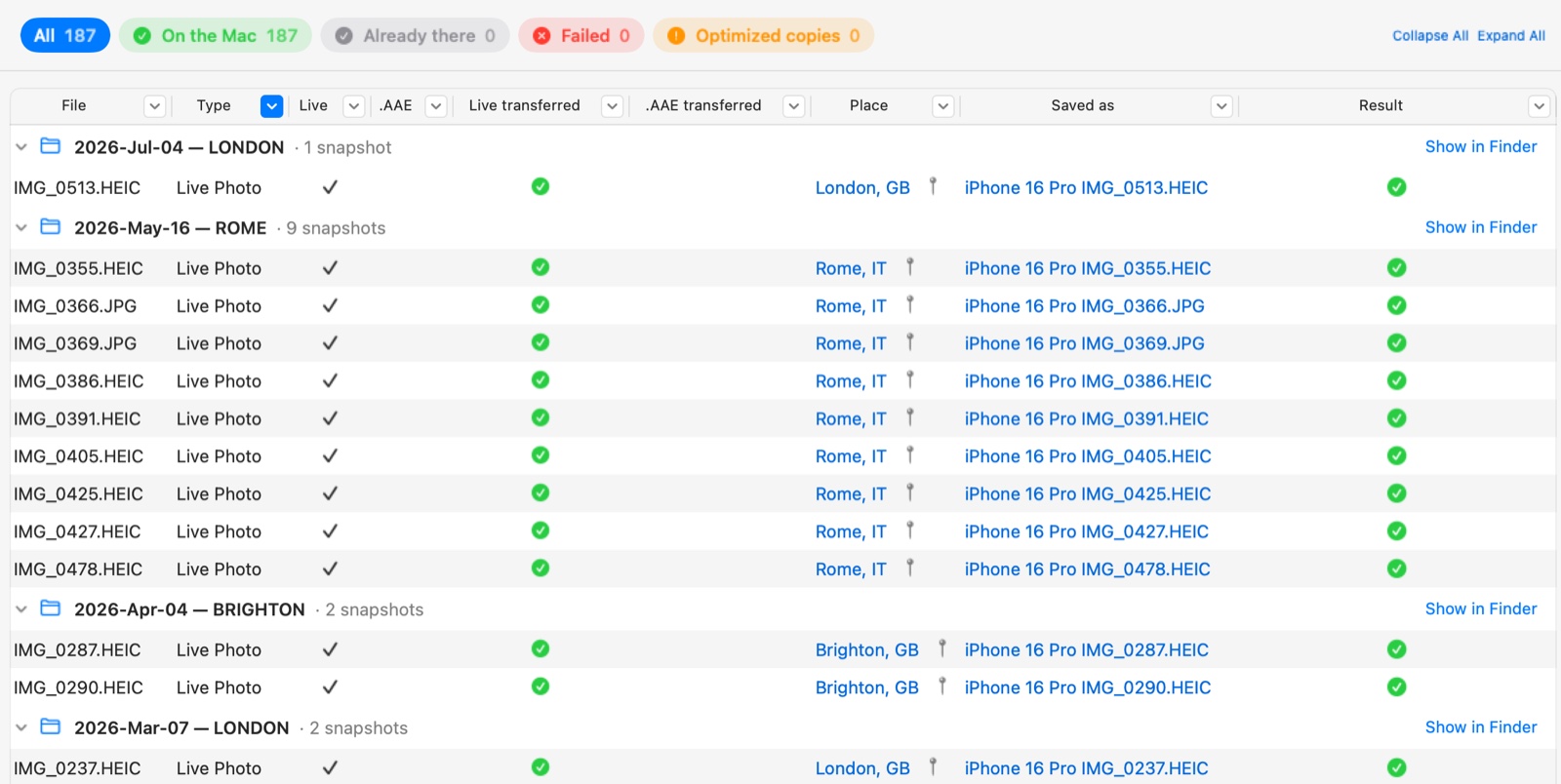
The transfer history says what landed on the Mac, file by file, so you can clear the phone weeks later without guessing.
Why it’s grey: iCloud Photos on the iPhone
With iCloud Photos on, the photos on your iPhone aren’t a collection of their own. The library lives in iCloud and the phone holds a mirror of it. A Level 10 member on Apple Community explains the rest in one line: “Your Mac cannot delete the mirrored copies.” And if it could, the delete wouldn’t stop at the phone. Apple says that a photo deleted on one device is deleted everywhere you use iCloud Photos, which means iCloud itself and Photos on your Mac if it syncs too.
So Image Capture greys out Delete after import, and Photos on the Mac doesn’t show its Delete items checkbox at all. People on Apple Community report the same for Image Capture’s own delete button, sometimes with a small cloud next to the phone’s name in the sidebar.
To check, on the iPhone go to Settings, tap your name, then iCloud, then Photos, and look at Sync this iPhone. If it’s on, that’s your answer.
“Keep originals” is the same option
The checkbox lives in the Action menu in Image Capture’s toolbar, and it comes in two versions. Apple’s guide says which one you get depends on the type of device you connected: either Delete after import, which you select, or Keep originals, which you deselect. They do the same thing from opposite ends. Keep originals ticked means nothing is deleted, unticked means the files are removed from the device after the import.
If Keep originals is ticked and won’t untick, it’s the same story as above.
If iCloud Photos is off and it’s still grey
A change on the phone doesn’t reach a connection that’s already open. Quit Image Capture, unplug the phone, unlock it, and plug it back in. Apple’s guide mentions that you may be asked to unlock the phone or to trust the Mac, and Image Capture can’t do much until you do. One person on Apple Community got rid of a stuck cloud icon by turning iCloud Photos on and off again and restarting the phone. There’s also a thread from 2024 where iCloud Photos was off, the box stayed grey, and nobody had an answer.
One warning before you switch iCloud Photos off just to get the checkbox back. Turning it off asks what to do with the photos on the phone, and with Optimize iPhone Storage on, many of them may be small copies whose originals are only in iCloud. The order matters, and the iCloud article goes through it step by step. And you don’t need the checkbox at all: the next two sections are the way round it.
Why I’d leave it off anyway
Even when it works, Delete after import deletes the moment the copy finishes, before you’ve opened a single file. A long-standing Apple Community tip by a Level 10 member lists what can go wrong: the app crashes halfway, a flaky cable leaves files you can’t open, a thumbnail looks fine while the file behind it isn’t. In every case the originals are already gone from the phone and you can’t run the import again. Their advice is the one I’d give: look at the photos full size and make a backup first, then delete.
And don’t count on the phone’s safety net. Photos you delete in Photos on the iPhone stay in Recently Deleted for 30 days. Apple doesn’t say the same about photos deleted from a Mac over the cable, so assume there’s no undo.
The safer way to clear the phone
- Copy the photos over the cable into a folder or straight onto a drive.
- Check the copy: the count, the sizes, and open a few, the oldest, the newest and the longest video.
- Delete on the phone, in Photos: tap Select, slide your finger across the rows to pick a whole stretch, tap the trash button. They wait in Recently Deleted for 30 days.
If iCloud Photos is on, step 3 deletes from iCloud and from every device too. Decide first where the library should live: the storage article goes through both cases, and if the answer is your Mac, the iCloud article shows how to get the originals out first.
Photo Transfer: no delete button, on purpose
Photo Transfer, the app I make, has no delete option at all. It opens the phone read-only, copies into the folder or drive you choose, sorted into folders by date, event or trip, and checks every file as it lands.
What it adds for this exact job is the transfer history. Every transfer is kept, file by file: which folder each photo went to, whether its Live Photo video and edit came along, what didn’t make it and why. Filter it to On the Mac, and weeks later you still know which photos are safe to delete on the phone. If some of them are only optimized copies with the originals in iCloud, it counts them before copying and asks whether to copy them or skip them. Free for 50 snapshots a day, $14.99 once for everything.
Copy over the cable, check every file, keep a record of what landed where, then delete on the phone when you’re ready. Free for 50 snapshots a day, $14.99 once for everything.
Checklist
- Delete after import grey or missing: Settings → your name → iCloud → Photos → Sync this iPhone.
- Keep originals ticked is the same option. Untick it only if you mean to delete.
- Changed a setting on the phone: quit Image Capture, unplug, unlock, plug in again.
- Don’t turn iCloud Photos off just for the checkbox. Decide where the library lives first.
- Leave automatic delete off. Delete on the phone, after you’ve checked the copy.
- Recently Deleted keeps photos deleted on the phone for 30 days. Don’t count on it for deletes from the Mac.
 Photo Transfer
© 2026 Viacheslav Koniukhov. Sold on this site by Paddle as merchant of record. Apple, iPhone, iPad, Mac, macOS and App Store are trademarks of Apple Inc. Photo Transfer is an independent product, not affiliated with or endorsed by Apple.